Themes for Google Chrome..!!!

New themes for Google Chrome.. That sounded like a "wow" to me. I tweeted about it last week but didn't  blog it as there were some problems with installing some themes. Now, after some update and stuff, the UI looks cool.
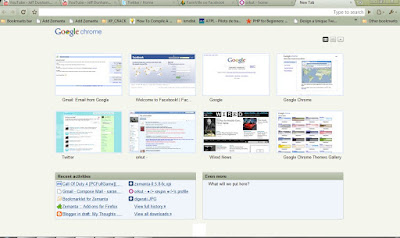

Now to install some themes..
Plan A
Go to Settings -> Options -> Personal Stuff -> Get Themes
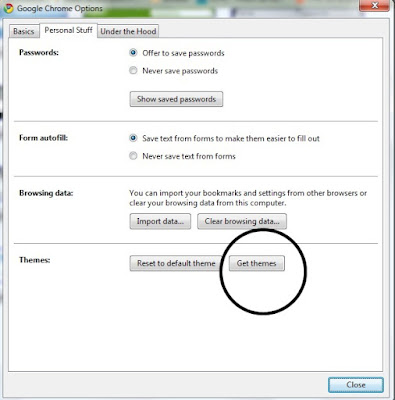


You'll be directed to the Google Chrome Themes Page .
Plan B
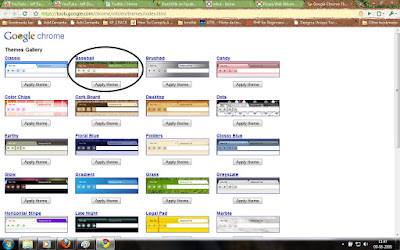
Go to https://tools.google.com/chrome/intl/en/themes/index.html and try out one by one. Save them in one folder.

Sad that Chrome does not provide any kind of option such as Theme Selector. If you need to change the current theme, then you'll have to double click on the theme file you've downloaded, and thats where we find Firefox as a better option..!!


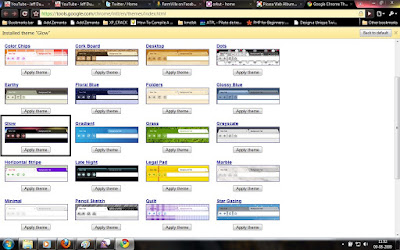
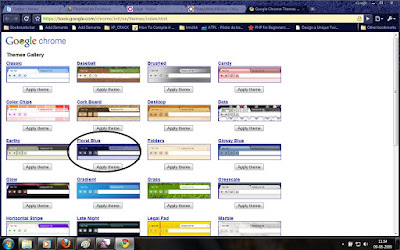
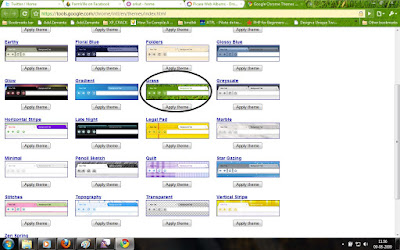
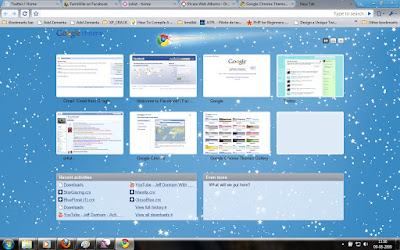
For me, some of the themes were so bright(Vertical Stripe , Legal Pad , Color Chips) and some were so pleasing.  Anyway, its time for you people to try the new look for your chrome. Here are the screen shots of some themes which i like.

Baseball

Brushed
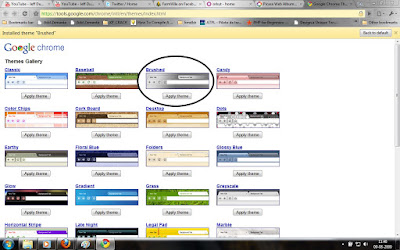

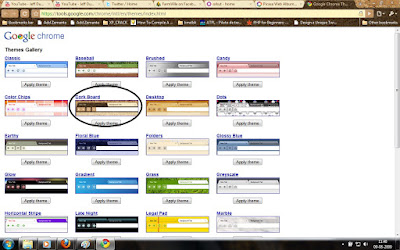
Cork Board

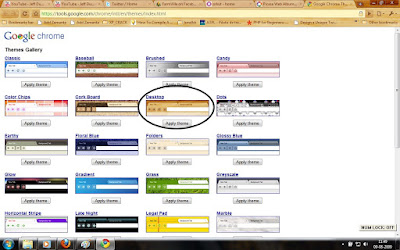
Desktop

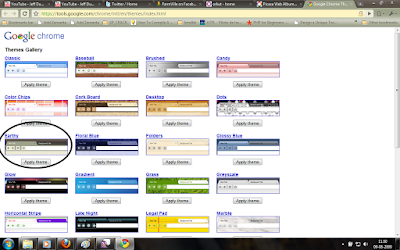
Earthy

Glow

Floral Blue

Grass

Stargazer

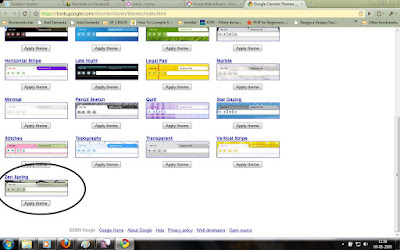
Zen Spring

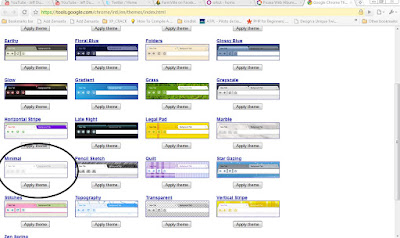
Minimal

So wat are you waiting for?? Get a new look for your Chrome..!!

Reblog this post [with Zemanta]

Installing Ubuntu 9.04 Desktop Edition

Okay people, we are back to freedom a.k.a GNU/Linux. In this post we'll be discussing on how to install Ubuntu 9.04(Jaunty Jackalope).
Preliminaries.


Step. 1: First, we'll take a look at the Minimum System Requirements needed for this version of Ubuntu.
please check this link: Go!!


Step 2: If the above dependency is satisfied, then we need to download the installation media. http://www.ubuntu.com/getubuntu/download and download the appropriate version. Then burn it into a CD or DVD.
Step 3: Boot from the CD and do the following steps. We are now going to install Ubuntu. I’m providing you sufficient pictures and descriptions, so that you won’t have any difficulty in installing Ubuntu on your machine.


Installation:
Step 1: Boot from the CD and when you see the following screen, select “Install Ubuntu”. You need to wait for some time as the system needs to prepare for the installation.
Step 2: You will be asked to select a language for the installation process. Select the language (Usually English) and click Next.

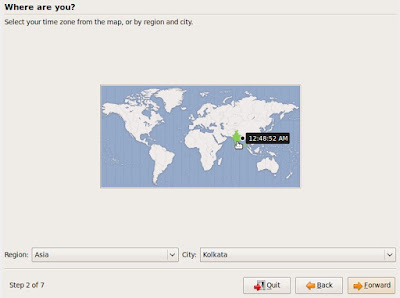
Step 3: Select your time-zone by selecting a city nearby you or selecting the country you are in.


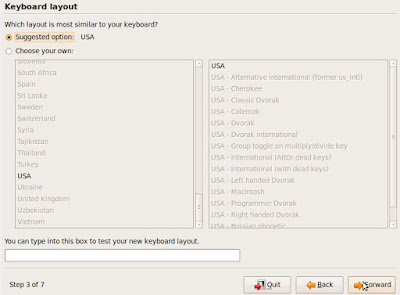
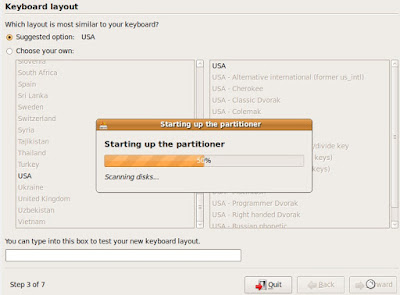
Step 4: Select the Keyboard Layout, in most cases it is US. Click the Forward button. Wait for sometime as the Partitioner is being set up.


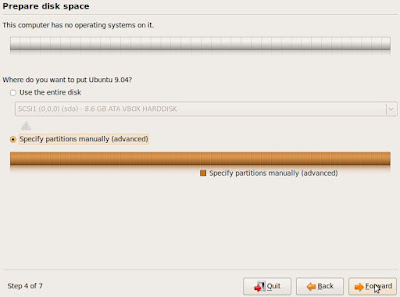
Step 5: Select “Specify Partitions Manually” and click Forward button.

Step 6: Select the required partition and click on “New Partition” button.
Step 7: Enter the required partition size. Make sure that you leave at least 1GB space for Swap area. Select the required file system type(Ext2 or Ext3) from “Use As” menu and set the “Mount Point” as “/”. Click “OK”.

Step 8: Allocate the required “Swap Area”. Remember to set it to at least 1GB. I’ve set it less than 1GB as a matter of shortage of free space. Click the Forward button.
Step 9: In this step, you need to give the login details like username and password. Click the Forward button.

Step 10: Click “Install” button. Now, sit back and relax as the installation takes some time.

Step 11: After the installation is complete, click the “Restart Now” button.

Step 12: After the system reboots, from the Grub loader, select the Ubuntu installation enter your username and password to login to your system.


What are you waiting for??? Explore and Enjoy...!!!

Reblog this post [with Zemanta]

JavaFX + Netbeans 6.5

JavaFX was the answer to Adobe Flex. With JavaFX, one can create rich internet applications. JavaFX allows creative developers to program in a visual context thus helping them to bring their ideas to life quicker and easier.  JavaFX makes it easy to integrate video, audio, graphics, animation and rich text. Applications can combine audio/video and 2D graphics with 3D perspective transform ( true 3D graphics coming soon) and rich text, with compellin visual effects and transformations.

And now the good news is that Netbeans 6.5 is out with JavaFX pluggin. Until Dec 4th, JavaFX plugin was not available for Netbeans6.5. As now it is available, one can get it by simply following the steps below.

PLAN-A

  • Select Tools->Plugins from your NetBeans 6.5 menu.
  • Select the Available Plugins tab.
  • Click on the Reload Catalog button just to make sure you have a fresh copy of all available plugins (this will take some time..)
  • Scroll down the plugin list to find the JavaFX 1.0 plugin, and click on its check box. You can also select a JavaFX debugger and several demos in the same area of the plugin list!
  • Click the Install button
  • Continue working until the download is finished and restart NetBeans IDE

 Well I am giving PLAN-B as PLAN-A didnt work out for me. I had downloaded the 6.5 version of Netbeans the day it was launched, and I selected the installation bundle which contained almost all the modules. When you got to the download page, you can see that JavaFX module is not compatible with certain installation bundles.

  • Go to download page and download the package
  • Download and install the bundle containing the JavaFX module.(Make sure you uninstall the previous version(if you have any)).

Why Netbeans??

The NetBeans IDE is the recommended tool to create, test, debug, and deploy JavaFX applications for the desktop, browser and mobile platforms. You have the option of deploying JavaFX projects as Java web start (JNLP), Java Applet or stand-alone applications. To get started quickly, select File > New Project from the main menu and have a look at our ready-to-run sample projects.

The JavaFX Script Editor supports syntax highlighting, source navigation, code completion, code folding, javadoc pop-ups, and error detection. You can use the Preview button to display the output of your visual code live. The IDE contains code snippets that can be dragged and dropped into the editor: The Palette allows you to quickly add JavaFX objects with transformations, effects and animation to your project.

Use the integrated Profiler for standard CPU or memory profiling, or simple monitoring to optimize your JavaFX application's speed and memory usage. The options have been preset to default values by experts, but you can customize settings for a specific application.

Related reading: